
I kept going blank in meetings, so I built Cue
By Sara · · 4 min read
Most of my day goes in meetings. Teams calls, Zoom calls, sometimes three back to back. And many times, in the middle of a call, someone says “Saravana, what do you think?” and my mind is still on what they said five minutes back.
Teams and Zoom both show live captions. But the captions keep moving, and after a few lines they are gone. I wanted something that keeps everything people said, and tells me what is going on when I lose the thread.
So I built a small Windows app for myself. It is called Cue. I use it in my own meetings, and version 1.2 came out this week, so I thought I will write about it.
What it does during the meeting
Cue reads the live captions straight from the Teams or Zoom desktop app. It is the same text you see on the screen, usually with the name of the person speaking. It does not record your audio for this. For Google Meet or a call in the browser, it can listen to your speakers instead and write the text down with Whisper, which also runs on your own computer.
On the right side there are three tabs.
- Brief keeps a short summary going: the topics, what was decided, and who has to do what.
- Questions gives two or three questions you could ask right now.
- Chip in gives you a few lines you can actually say. This is the one I wanted most, for the moment someone suddenly asks you something.
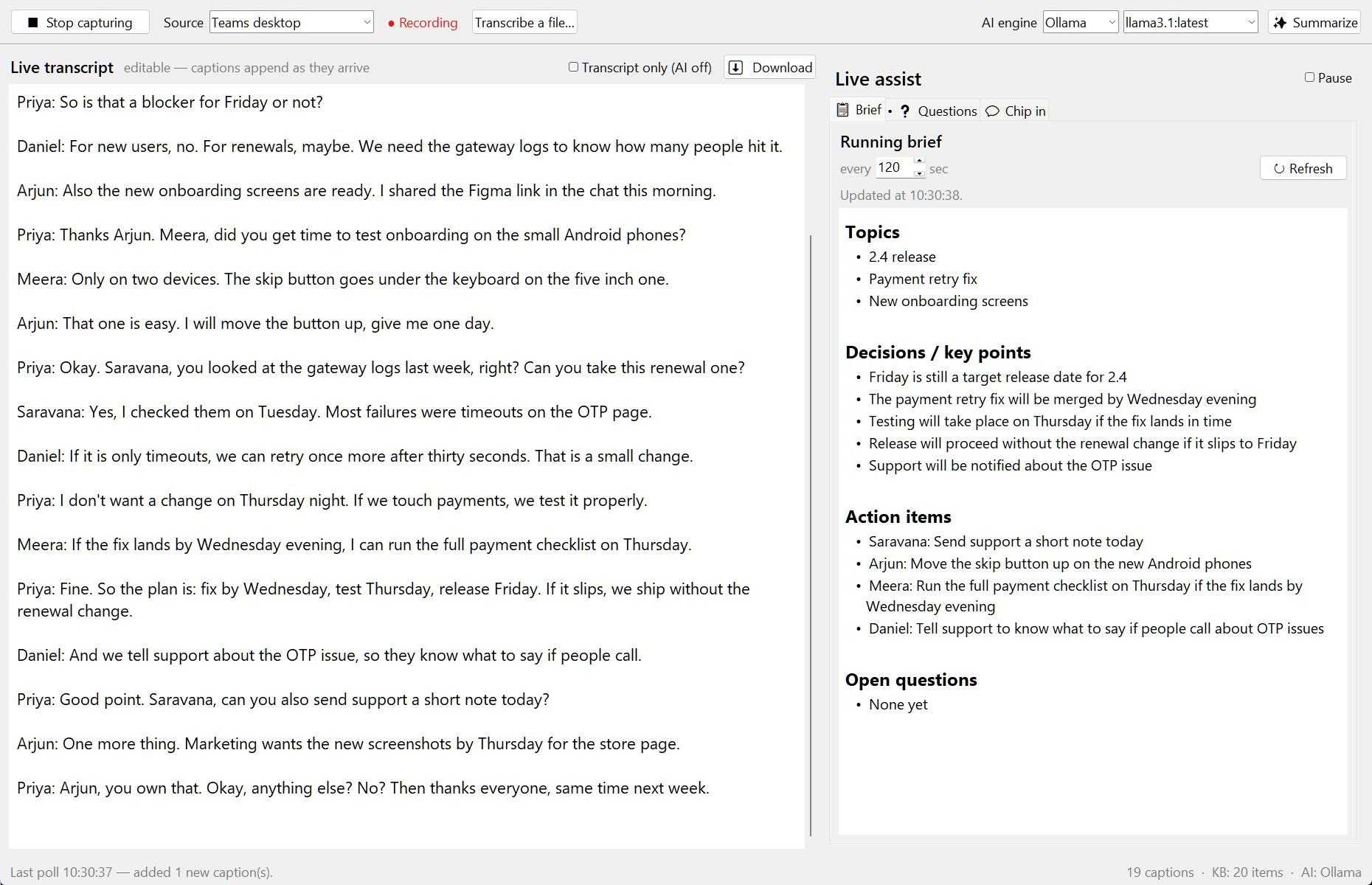
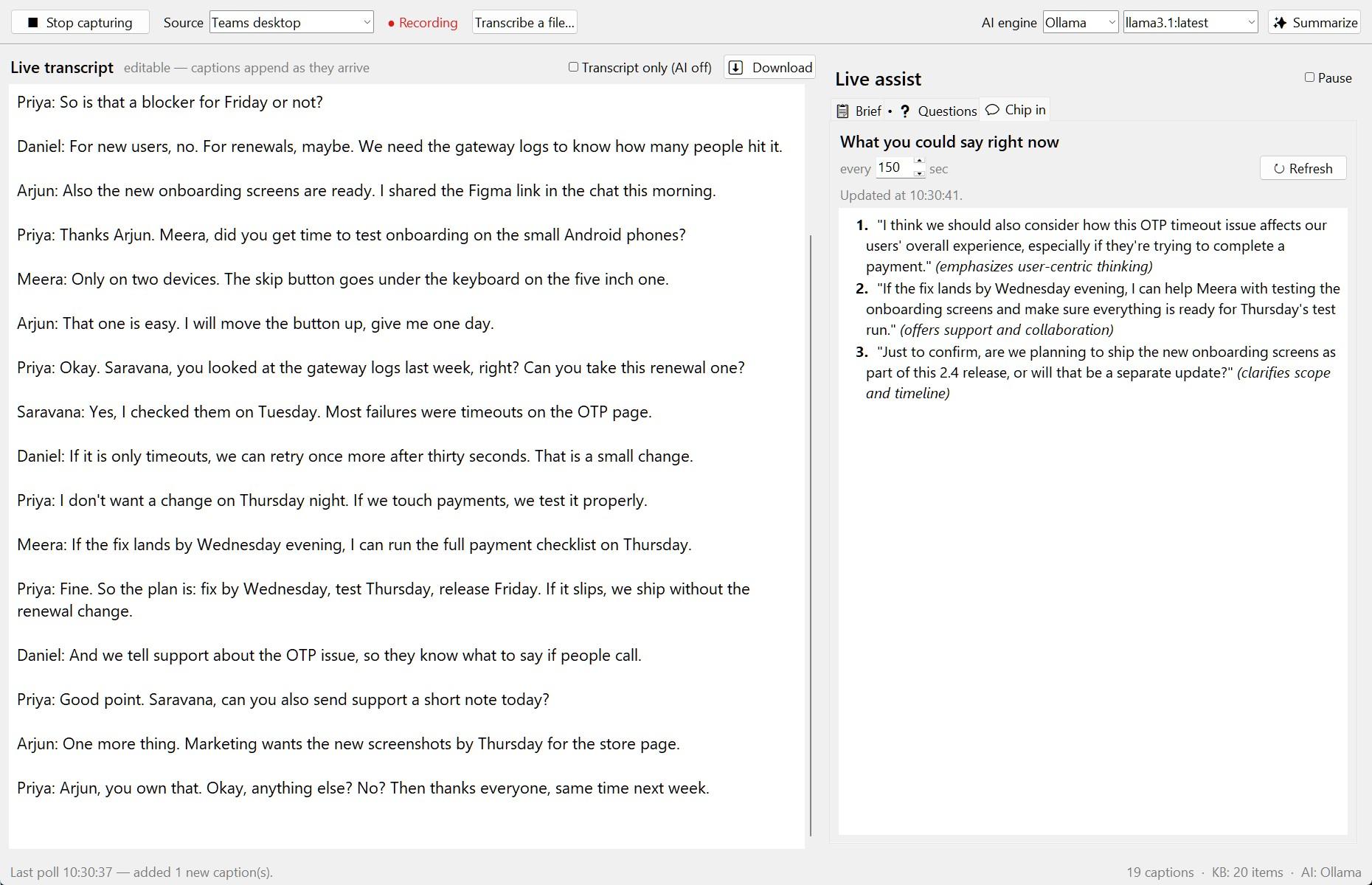
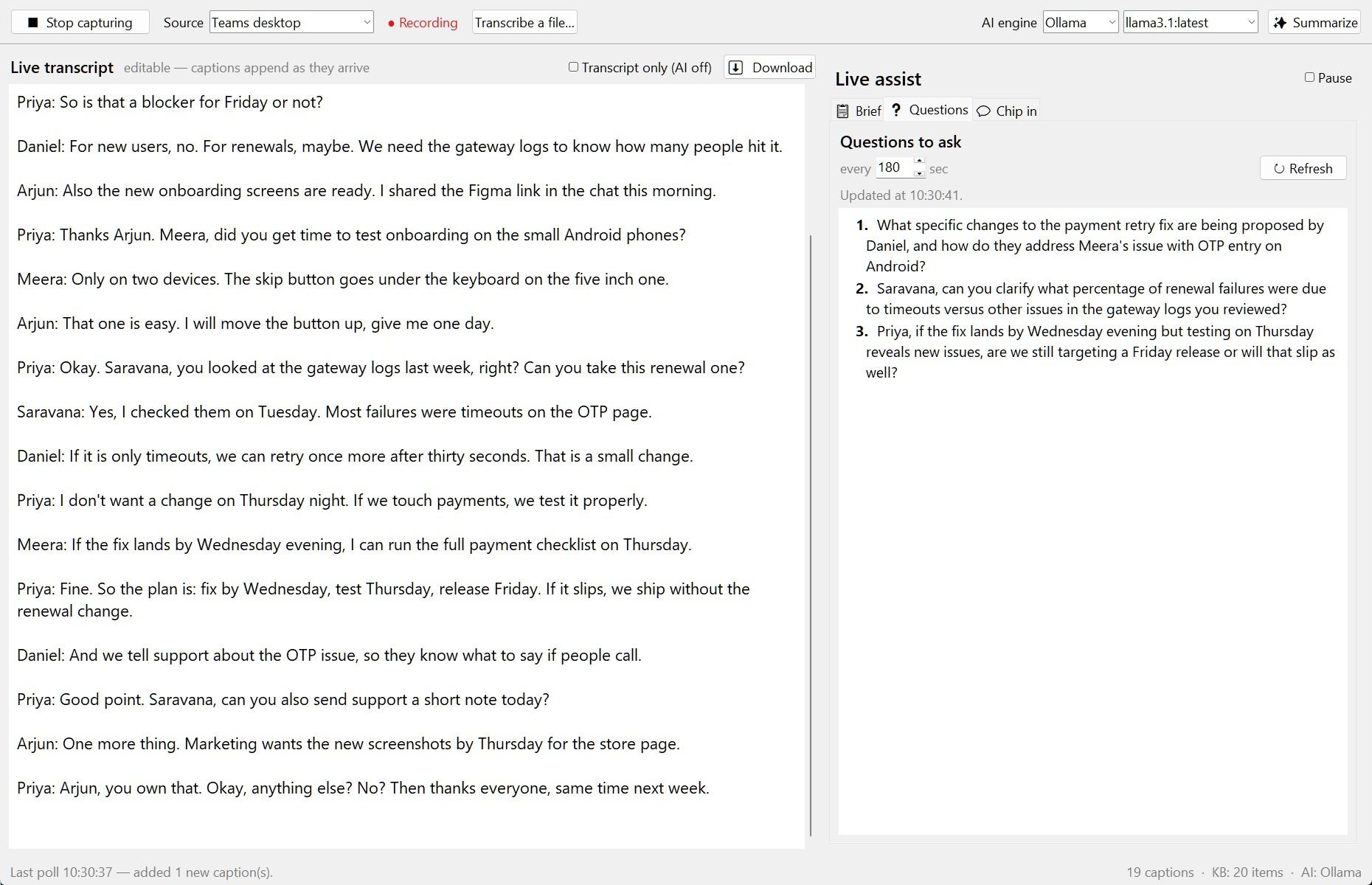
The AI part runs through Ollama on your own machine, so it costs nothing and the meeting text does not leave your computer. If you prefer, you can use Claude with your own API key instead.
The transcript I was not allowed to download
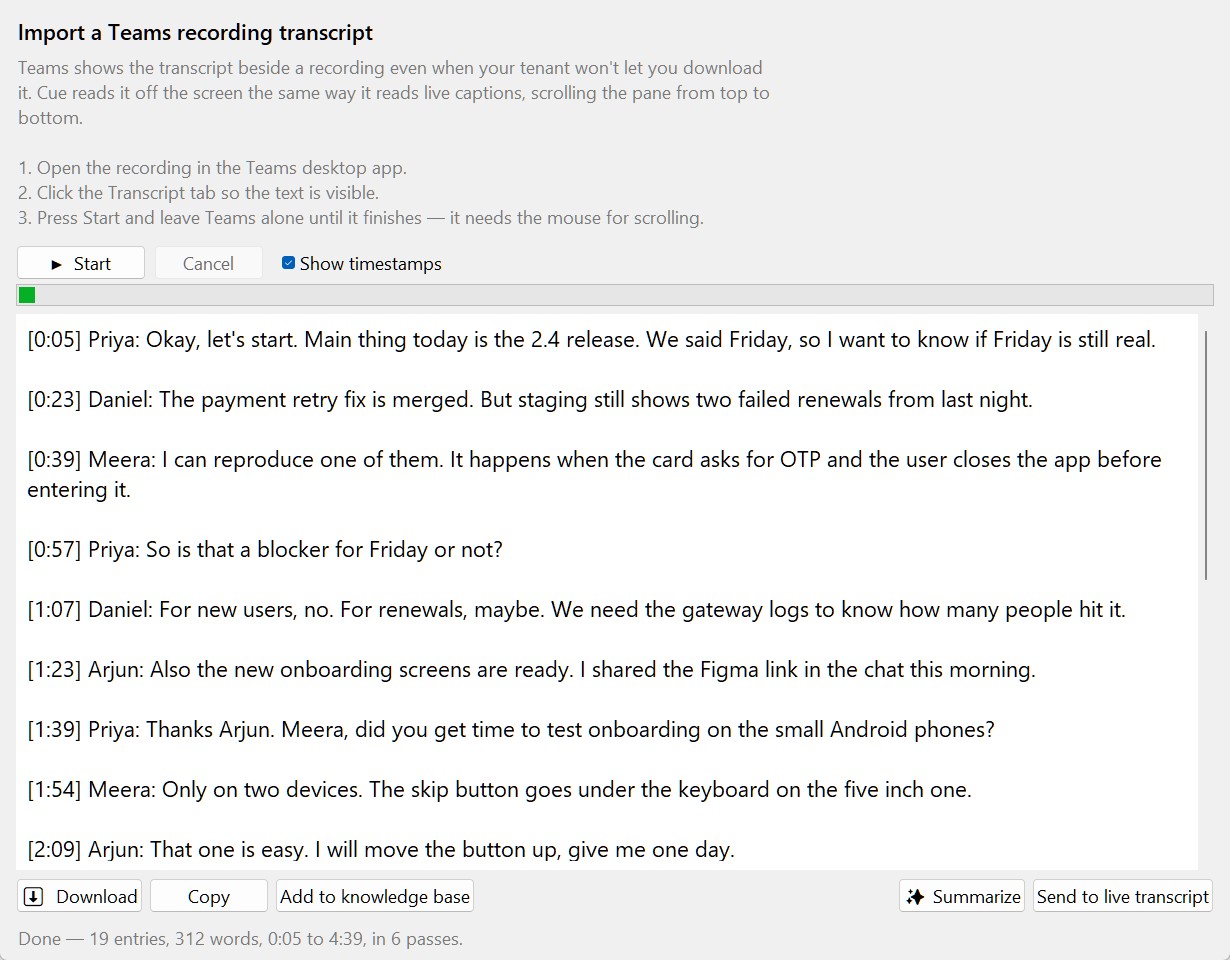
This one came from a real problem. After a Teams meeting, the transcript is shown right next to the recording. But in a lot of companies you cannot download it. The Download button is there, but it is greyed out, and it tells you to ask the organiser.
The text is still on my screen, so Cue reads it from there. Open the recording, click the Transcript tab, press Start in Cue, and leave the mouse alone for a minute. Cue scrolls the whole transcript from top to bottom and puts it together with names and times. Then press Download and you get a Markdown or text file.
For Zoom it is easier. If captions were on while you recorded the meeting to your computer, Zoom saves them as a .vtt file next to the recording. In Cue, open the File menu, choose Open transcript file, and pick it.
When I only want the text
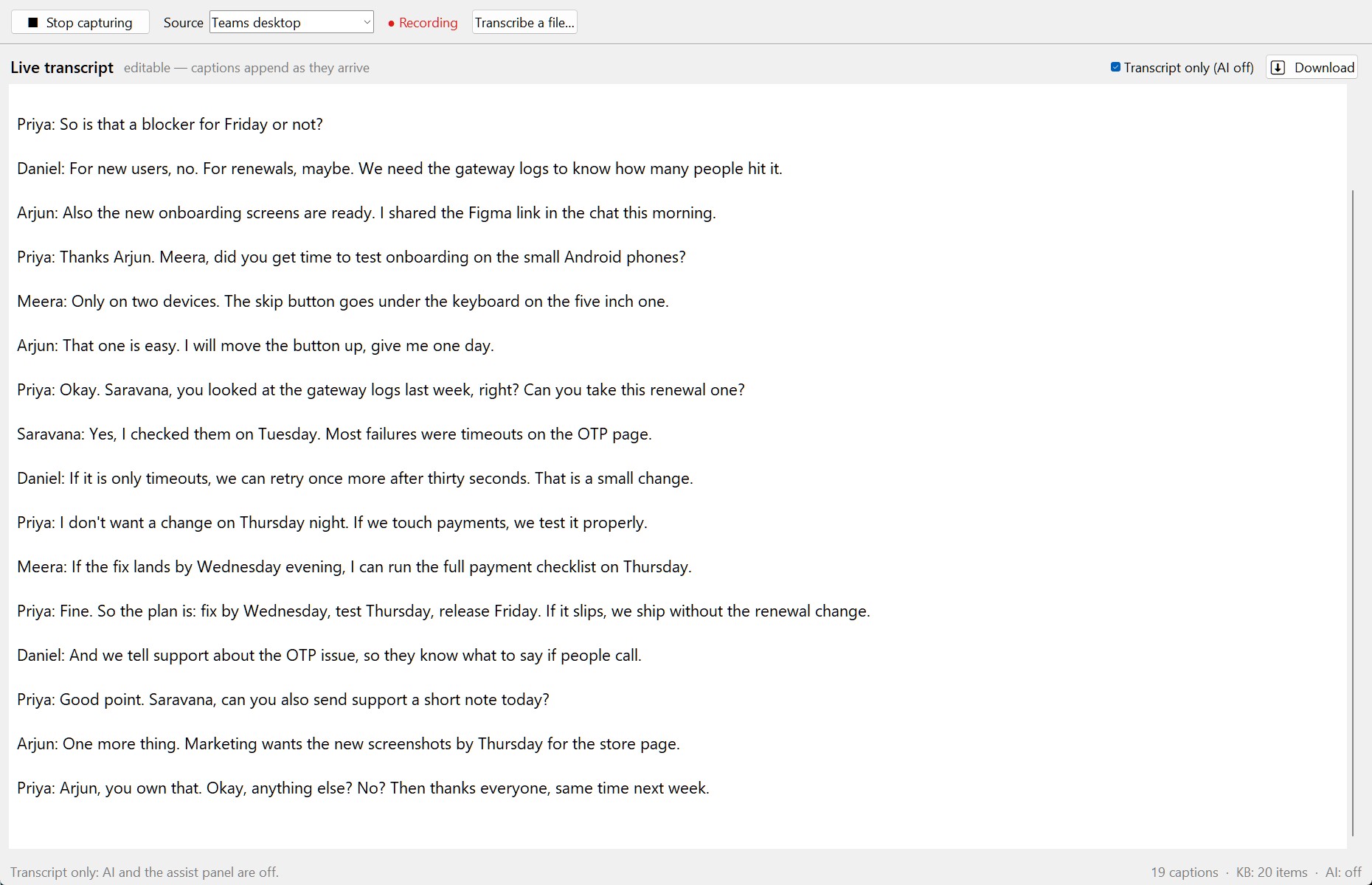
Not every meeting needs AI. Some days I just want a clean transcript and nothing else. So there is a box called Transcript only (AI off) above the transcript. When you tick it, the right side goes away, the AI buttons go away, and Cue does not call any AI at all. It remembers this the next time you open it.
A few honest things
- It is Windows only for now.
- The installer is not code signed yet, so Windows shows a SmartScreen warning the first time. Click More info, then Run anyway. You can check the file against the SHA-256 on the download page first.
- For Brief, Questions and Chip in you need Ollama installed, or a Claude API key. Without them the transcript part still works.
- Please tell people in the meeting that you are keeping a transcript. In many places you have to, and it is the right thing anyway.
Get it
Cue is free and open source. The installer and the code are on GitHub.
If you try it and something does not work, or you want something added, tell me here. Most of Cue came from me getting stuck in my own meetings, so I will keep improving it.